How to log-in to the Wolt Merchant Portal
Everything you need to know about Wolt merchant login, such as accessing your account, adding users and more.

Overview
- How do I log into the Merchant Portal?
- I don’t remember my login
- I didn’t receive a login email
- How do I add users to my Merchant Portal account?
Already a Wolt merchant partner? Sign in to the Merchant Portal.
Logging into the Wolt Merchant Portal is the first step toward building your profitable online sales. This all-in-one platform enables you to track orders, analyze sales data, and update your restaurant menu and operating hours.
How do I log into the Merchant Portal?
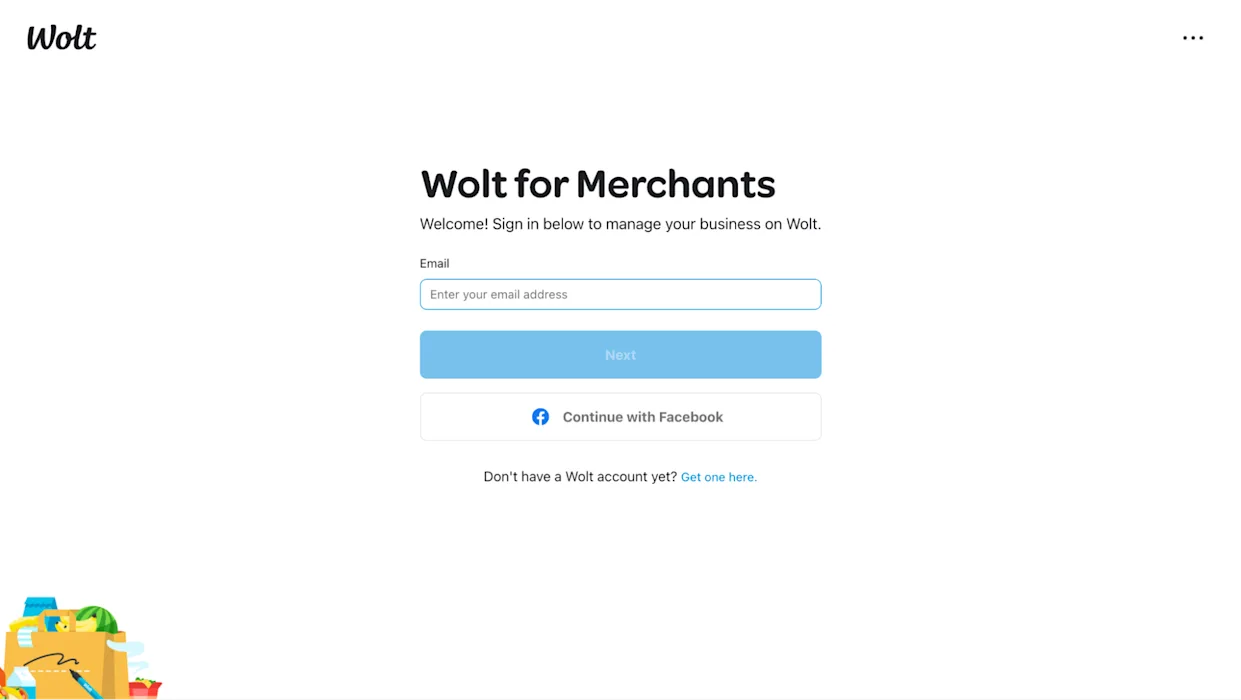
The first step to managing your business and boosting your online sales with Wolt is logging into the Merchant Portal.
When you signed up your venue with Wolt, we automatically created an account for the email you used during your registration. Here’s how to log in:
Go to the Merchant Portal
Enter the email you used to sign up with Wolt
Open your email inbox and look for an email from Wolt
Click the login link in that email
That’s it — you’re in!
💡Tip: Bookmark the Merchant Portal for easy access!
I don’t remember my login
No worries — you don’t need a password to access the Merchant Portal. All you need is access to the email address you registered with. Each time you log in, we’ll send you a fresh link.
I didn’t receive a login email
If the email doesn’t arrive after entering your email address, here are a few possible reasons:
Wrong email address Double-check that you’re using the same email you used when signing your venue up with Wolt. 👉 If you no longer have access to that email, please reach out to your local Merchant Team for help.
No account created yet If you’ve never set up a Wolt account with that email, create one now. If you were invited to the Merchant Portal, you’ll automatically gain access to your venue once your account has been created.
How do I add users to my Merchant Portal account?
Empower your team by adding more users to your Merchant Portal account. Here’s how:
Log in to your Merchant Portal account.
Click on "Access Management" in the left navigation tab.
Under "Merchant Admin Users," click on "+ Invite User" to invite your team via email and assign their user rights based on what parts of the app they need to access:
Restaurant worker: Can see and edit menus but can't add new users.
Restaurant manager: Can see and edit menus and add new users.
ℹ️ The invited users will need to create a Wolt account.